Can VLC Play YouTube Videos? (3-Step Fix!)
Let’s be honest, as YouTube content creators, we’re constantly juggling a million things.
From brainstorming killer content ideas to editing those late-night recording sessions, our digital workspace can quickly become a chaotic mess.
That’s why I’m always on the lookout for tools that can simplify my workflow and boost my productivity.
Enter VLC Media Player, a true unsung hero in the world of video.
VLC isn’t just your average media player; it’s a versatile powerhouse that can streamline how you view and manage video content, including those endless hours of YouTube research and inspiration.
In this article, I’ll dive deep into whether VLC can still play YouTube videos in 2025, and more importantly, how to fix it when it inevitably throws a tantrum.
Section 1: Overview of VLC Media Player
VLC Media Player, or VideoLAN Client, has been around for over two decades.
Born from a student project at École Centrale Paris, it quickly evolved into a powerful open-source tool.
Its open-source nature means that developers worldwide contribute to its ongoing development, ensuring it stays relevant and adaptable.
For content creators like us, VLC has become a go-to tool for various tasks.
I use it for everything from quickly previewing video files to converting formats and even basic media management.
According to a 2024 report by VideoLAN, VLC boasts over 3 billion downloads worldwide, a testament to its widespread adoption and reliability.
What makes VLC so effective? A few key features stand out:
- Universal Format Support: Seriously, it plays everything.
From MP4 and AVI to MKV and even obscure formats you’ve probably never heard of, VLC handles it all. - Customizable Interface: You can tweak the interface to suit your needs, adding or removing controls and even changing the skin.
- Advanced Playback Options: Fine-tune playback speed, add subtitles, and even apply audio and video effects.
Section 2: Can VLC Play YouTube Videos?
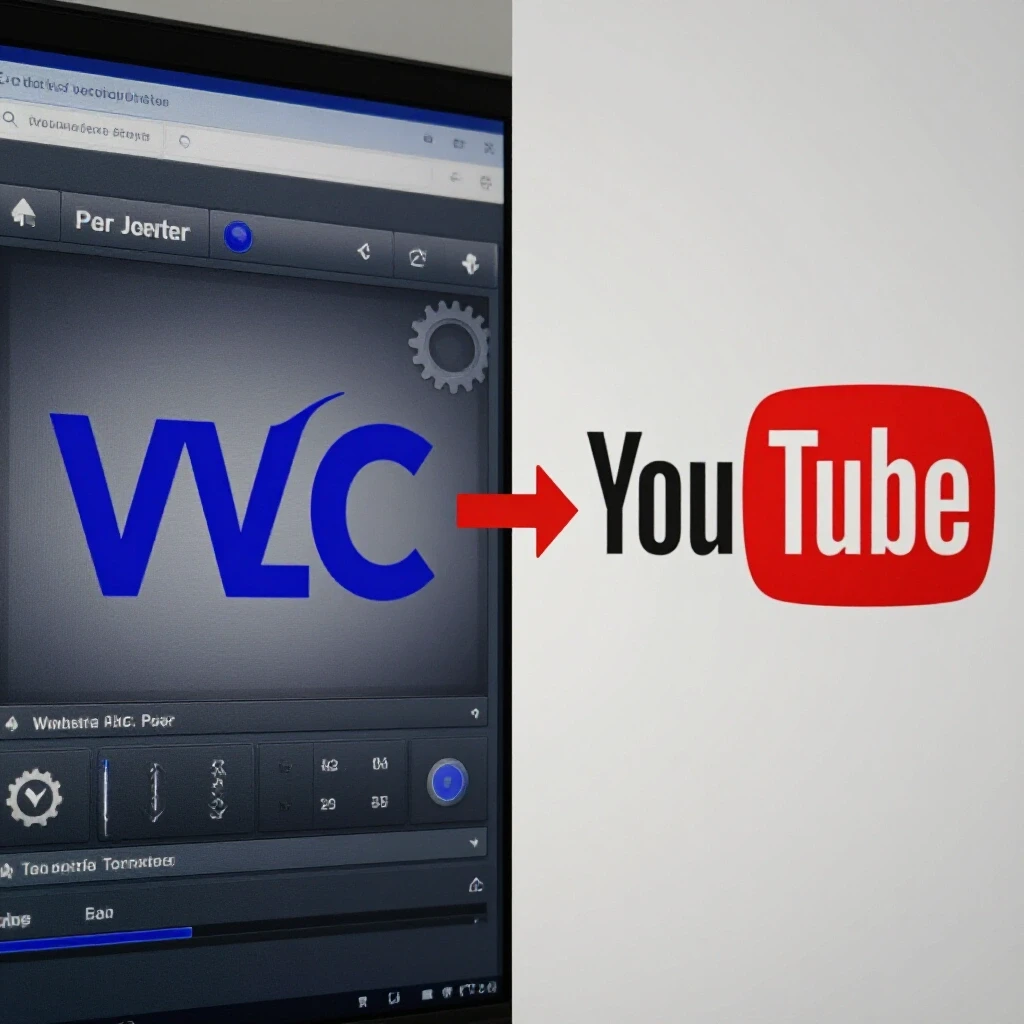
So, the burning question: can VLC still play YouTube videos in 2025?
The answer is… it’s complicated.
In theory, yes, VLC can play YouTube videos directly. The appeal is obvious:
- Reduced Distractions: No more endless scrolling through YouTube’s homepage or getting sucked into the algorithm’s rabbit hole.
- Offline Viewing (Sort Of): By downloading the video through VLC, you can technically watch it offline, though it’s not the same as a true download for redistribution.
- Custom Playback: VLC’s advanced controls let you fine-tune the viewing experience, something YouTube’s built-in player doesn’t always offer.
However, here’s the catch: streaming YouTube videos through VLC isn’t always smooth sailing.
I’ve personally encountered my fair share of error messages and playback issues.
Believe me, nothing is more frustrating than settling in for some research only to be met with a blank screen and a cryptic error code.
The biggest hurdle is YouTube’s ever-evolving policies and technology.
YouTube constantly updates its platform, which can break VLC’s ability to play content directly.
In fact, many users report that frequent updates to the youtube.luac script (the script VLC uses to parse YouTube URLs) are necessary to maintain functionality.
This is where things get tricky.
Think of it like this: YouTube is constantly changing the locks on its doors, and the VLC community is in a perpetual race to find the new key.
In 2025, this cat-and-mouse game will likely continue, meaning that while VLC can play YouTube videos, it might require a bit of troubleshooting.
Section 3: Step-by-Step Guide to Fixing Playback Issues
Don’t despair!
Even if you’re facing YouTube playback issues with VLC, there are steps you can take to get things working again.
Here’s my 3-step fix for 2025:
Step 1: Ensure VLC is Up-to-Date
This might seem obvious, but it’s the most common culprit.
Using an outdated version of VLC is like trying to run the latest version of Adobe Premiere Pro on a computer from 2010 – it’s just not going to work.
How to Check for Updates in VLC:
- Open VLC Media Player.
- Navigate to Help > Check for Updates.
VLC will automatically check for the latest version.
If an update is available, follow the prompts to download and install it.
I personally make it a habit to check for updates at least once a month.
Why is this important?
- Bug Fixes: Updates often include fixes for known bugs and vulnerabilities, which can improve stability and performance.
- Compatibility: Newer versions of VLC are more likely to be compatible with YouTube’s latest changes.
- Security: Outdated software can be a security risk, making you vulnerable to malware and other threats.
I can’t stress this enough: keeping VLC up-to-date is the foundation for smooth YouTube playback.
Step 2: Get the Correct YouTube URL
Believe it or not, not all YouTube URLs are created equal.
VLC needs a specific type of URL to play videos correctly.
How to Find the Correct YouTube URL:
- Open the YouTube video you want to play in VLC.
- Copy the URL from the address bar of your browser. This is the standard YouTube URL.
The Difference Between Standard and Embedded URLs:
- Standard URL: This is the typical URL you see in your browser’s address bar (e.g.,
https://www.youtube.com/watch?v=dQw4w9WgXcQ). - Embedded URL: This is the URL used for embedding videos on websites (e.g.,
https://www.youtube.com/embed/dQw4w9WgXcQ).
VLC typically works best with the standard URL.
However, sometimes even the standard URL might not work directly.
In those cases, I’ve found that using a YouTube URL extractor website can help.
These websites parse the YouTube page and provide the direct video stream URL, which VLC can then use.
Troubleshooting URL Issues:
- Check for Typos: Make sure you’ve copied the URL correctly, without any extra spaces or characters.
- Try a Different Browser: Sometimes, browser extensions or settings can interfere with YouTube URLs.
Try copying the URL from a different browser. - Use a URL Extractor: As mentioned earlier, these websites can provide the direct video stream URL if the standard URL isn’t working.
Step 3: Configure VLC Settings for YouTube Playback
Even with the correct URL and an up-to-date VLC, you might still encounter playback issues.
That’s where tweaking VLC’s settings comes in.
Necessary Settings Adjustments:
Network Caching:
- Go to Tools > Preferences.
- Click on Input / Codecs.
- Under Advanced, increase the Network caching (ms) value.
I usually set it to 1000 or 2000 ms.
This gives VLC more time to buffer the video, reducing stuttering and buffering issues.
Video Output:
- Go to Tools > Preferences.
- Click on Video.
- Change the Output setting.
I’ve found that DirectX (DirectDraw) or OpenGL video output often work well.
Experiment with different options to see what works best for your system.
Codec Adjustments (If Necessary):
- Sometimes, specific codecs might be causing issues.
While VLC usually handles codecs automatically, you can try manually installing codec packs like K-Lite Codec Pack if you’re experiencing persistent problems.
- Sometimes, specific codecs might be causing issues.
Troubleshooting Checklist:
- Check Your Internet Connection: A stable internet connection is crucial for streaming YouTube videos.
- Disable Hardware Acceleration: In some cases, hardware acceleration can cause issues.
Try disabling it in VLC’s settings (Input / Codecs > Hardware acceleration decoding). - Restart VLC: Sometimes, a simple restart can resolve temporary glitches.
- Update Your Graphics Drivers: Outdated graphics drivers can sometimes cause video playback issues.
Section 4: Additional Tips for Content Creators
VLC’s usefulness extends far beyond just playing YouTube videos.
As content creators, we can leverage its features for a variety of tasks:
- Video Editing: While not a full-fledged video editor, VLC offers basic editing capabilities like cutting, cropping, and merging videos.
I often use it for quick edits before importing footage into my main editing software. - Video Conversion: VLC can convert videos between different formats, which is incredibly useful for optimizing files for different platforms or devices.
- Media Management: I use VLC to organize my video library, creating playlists and easily accessing my most frequently used files.
Integrating VLC into Your Workflow:
- Quick Previews: Use VLC to quickly preview video files before importing them into your editing software, saving you time and resources.
- Format Conversion: Convert videos to different formats for optimal playback on various devices and platforms.
- Basic Edits: Perform quick edits like trimming unwanted footage or merging clips before importing them into your main editing software.
Recent Updates in VLC (As of 2025):
While I can’t predict the future, I can speculate on potential updates in VLC by 2025 based on current trends.
I anticipate continued improvements to codec support, enhanced streaming capabilities, and potentially even more advanced editing features.
Keep an eye on the official VLC website and community forums for the latest news and updates.
Conclusion
Let’s face it, as content creators, we need every advantage we can get.
VLC Media Player, despite its occasional quirks, remains a powerful and versatile tool for managing our video content, including those endless hours of YouTube research.
By keeping VLC up-to-date, using the correct YouTube URLs, and tweaking the settings as needed, you can ensure a smooth and efficient viewing experience.
I encourage you to explore VLC’s features further and discover how it can enhance your video viewing and editing experience.
A streamlined digital workspace is essential for productivity, and VLC can be a valuable asset in achieving that goal.
Call-to-Action
I’d love to hear about your experiences with VLC and YouTube!
Share your tips, tricks, and troubleshooting stories in the comments section below or on social media using the hashtag #VLCforCreators.
And if you’re looking for more insights into optimizing your video production and editing processes, be sure to subscribe to my channel for regular updates and tutorials!