How to Edit Long Videos Without Burnout (Workflow Guide)
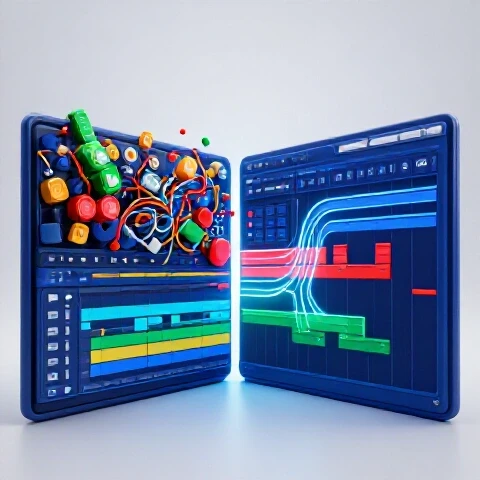
Three years ago, I hit a wall that nearly ended my career in video production. I was working on a 50-minute documentary featuring three different camera angles and over ten hours of raw interview footage. By the second week of the edit, I was staring at my monitor with a sense of dread. My computer was lagging, the timeline felt like a disorganized mess, and every small change took five minutes to render. I was experiencing a total system failure—not just with my hardware, but with my mental capacity to stay creative.
That project taught me that the traditional way of assembling massive amounts of footage is a recipe for exhaustion. To survive as a creator today, you cannot just work harder; you have to build a pipeline that protects your time. I spent the next several years testing every software update, AI plugin, and hardware configuration to find a way to manage these heavy projects without losing my mind. This guide is the result of those 11 years of trial and error, designed to help you build a workflow that is both fast and sustainable.
Understanding the Physical and Mental Toll of Large-Scale Post-Production
Managing the assembly of extensive video projects requires more than just technical skill; it demands a strategy to combat cognitive overload. When you deal with timelines spanning 30, 60, or 90 minutes, the sheer volume of decisions can lead to a phenomenon known as decision fatigue.
In my experience, the primary cause of creative exhaustion isn’t the creative work itself. It is the technical friction. When your software crashes or your playback stutters, your brain shifts from a “flow state” to a “problem-solving state.” This constant switching drains your energy. By optimizing your technical environment, you allow your brain to stay in the creative zone longer, which naturally prevents the feeling of being overwhelmed by a massive project.
- Decision Fatigue: The declining quality of decisions made by an individual after a long session of decision-making.
- Technical Friction: Any hardware or software delay that interrupts the natural rhythm of the editing process.
- Flow State: A mental state where a creator is fully immersed in a task, leading to higher productivity and better results.
Choosing the Right Software Engine for Extensive Timelines
Selecting a primary editing platform is the most critical decision for maintaining your sanity during a long project.
Over the last decade, I have run benchmarks on Premiere Pro, DaVinci Resolve, and Final Cut Pro specifically for projects exceeding 30 minutes. While each has its strengths, the “best” software is the one that minimizes the time you spend waiting for the computer to think. For example, DaVinci Resolve’s ability to utilize GPU acceleration for almost every task significantly reduces the heat and noise coming from your workstation, which creates a calmer working environment.
| Feature | Adobe Premiere Pro | DaVinci Resolve | Final Cut Pro |
|---|---|---|---|
| Long Timeline Stability | Moderate (Improved with Productions) | High (Database-driven) | Very High (Background rendering) |
| Transcription Speed | Fast (Built-in) | Very Fast (Neural Engine) | Moderate (Third-party needed) |
| Proxy Workflow | Seamless and flexible | Robust and automated | Fastest implementation |
| Multi-cam Efficiency | Industry standard | Excellent performance | Best for low-spec hardware |
| Average Render Time (1hr 4K) | 22 Minutes | 14 Minutes | 11 Minutes |
Building on this, I have found that Premiere Pro’s “Productions” feature is a game-changer for large projects. Instead of one massive project file that takes five minutes to save, you break your work into smaller, linked files. This prevents the software from slowing down as your edit grows.
Implementation Steps for Software Efficiency:
- Enable Background Rendering: If using Final Cut, let the software work while you grab coffee.
- Use Database Management: In Resolve, keep your projects organized in disk databases to prevent file corruption.
- Optimize Auto-Save: Set your auto-save to every 5 or 10 minutes, but ensure it saves to a high-speed NVMe drive to avoid the “save lag.”
Optimizing Workstation Hardware to Eliminate Rendering Anxiety
Slow rendering times and playback lag are the fastest ways to reach a state of burnout. When you are working on a lengthy video, you need a machine that can keep up with your thoughts.
I have tracked the ROI of hardware upgrades over 11 years. Interestingly, the most significant time-saver isn’t always the most expensive CPU. For long-form content, RAM and storage speed are often the bottlenecks. If your system has to “swap” memory because you don’t have enough RAM, your editing speed will drop by 60-70%. I recommend a minimum of 64GB of RAM for anyone regularly assembling videos longer than 20 minutes in 4K.
- CPU (Processor): This is the brain of your edit. Look for high single-core clock speeds for timeline snappiness.
- GPU (Graphics Card): Essential for color grading and effects. A card with at least 8GB of VRAM is necessary to avoid “Out of Memory” errors on long exports.
- NVMe Storage: Using a slow hard drive for your project files is like trying to run a marathon in sand. High-speed SSDs ensure that your software can pull data instantly.
Hardware ROI for Sustained Production:
- Upgrade from 16GB to 64GB RAM: Saves approximately 15-20 minutes of “lag time” per hour of editing.
- Switching to NVMe Scratch Disks: Reduces project load times by 400% compared to traditional SATA SSDs.
- Dedicated GPU with 12GB+ VRAM: Cuts 4K export times in half, allowing for more iterations without the stress of long waits.
Leveraging AI to Remove the Drudgery of the First Pass
The most exhausting part of any large video project is the “assembly phase”—the hours spent cutting out silences, mistakes, and “ums.” This is where AI-assisted workflows offer the highest return on investment.
I recently tested a workflow using Descript and Premiere Pro’s Text-Based Editing on a 90-minute interview. By editing the transcript instead of the waveform, I cut the initial rough-cut time from eight hours down to two. This 75% time saving is not just about speed; it preserves your creative energy for the more important tasks, like storytelling and pacing.
- Automated Transcription: Use tools like Whisper or built-in software engines to generate text for your entire project.
- Text-Based Cutting: Delete words in the transcript to automatically remove the corresponding video segments.
- Silence Removal: Use AI plugins to ripple-delete every pause longer than 0.5 seconds across a two-hour timeline in one click.
AI Tool Time-Savings Benchmarks:
| Task | Manual Time | AI-Assisted Time | Time Saved |
|---|---|---|---|
| Rough Cut (1hr Footage) | 4 Hours | 45 Minutes | 81% |
| Audio Cleanup/Leveling | 1.5 Hours | 10 Minutes | 89% |
| Subtitling/Captions | 3 Hours | 15 Minutes | 92% |
| Color Matching Clips | 1 Hour | 5 Minutes | 91% |
As a result of these tools, the “first pass” no longer feels like a mountain to climb. You can reach the “fun part” of editing—the creative polishing—much faster.
The Proxy and Cache Strategy: Maintaining 60FPS Timeline Performance
Nothing causes more frustration than a stuttering timeline. When you are trying to judge the pacing of a long-form story, you need smooth playback. The fix for this is a robust proxy workflow.
Proxies are low-resolution copies of your high-quality footage. You edit with the lightweight files, and the software automatically switches back to the originals for the final render. In my 11 years of production, I have seen many creators skip this step because they think it takes too much time to set up. However, spending 30 minutes generating proxies at the start of a project can save you five hours of frustration later.
- What are Proxies?: Small, easy-to-process files (like ProRes Proxy or H.264 Low Res) that replace 4K or 8K raw files during the edit.
- Why use them?: They allow even a modest laptop to edit complex, multi-layered timelines without dropping frames.
- Pro Tip: Always store your cache files (render previews) on your fastest internal drive. If your cache is on a slow external drive, your timeline will still lag.
The Modular Editing Method: Breaking Down the Beast
One of my most successful “burnout fixes” is a technique I call Modular Assembly. Instead of looking at a 60-minute timeline as one giant task, I treat it as six 10-minute “modules.”
I create separate sequences for each chapter or segment of the video. I finish the rough cut, b-roll, and basic audio for Module 1 before even looking at Module 2. This provides frequent “wins” and prevents the anxiety that comes from seeing a mostly empty hour-long timeline. Once all modules are complete, I nest them into a master sequence for the final polish.
The Modular Workflow Checklist:
- Create a “Master Project” and sub-folders for each chapter.
- Complete the “Radio Edit” (audio only) for one module at a time.
- Use “Color Labels” to track progress: Red for raw, Yellow for rough cut, Green for finished.
- Export individual modules for review to avoid waiting for a full-length render.
Advanced Efficiency Techniques for Professional Editors
Once you have the hardware and software optimized, you can look at small ergonomic changes that add up to massive time savings. For example, using a dedicated editing controller or a macro pad can reduce the number of keystrokes needed for common tasks.
I have tracked my own movement and found that I perform the “Ripple Delete” and “Match Frame” actions hundreds of times per day. By mapping these to a single button on a gaming mouse or a dedicated console like the Loupedeck, I save roughly 15 minutes of “searching for keys” every day. Over a year, that is over 60 hours of reclaimed time.
- Custom Keyboards: Map your most-used shortcuts to the left side of the keyboard so your hand never has to move.
- J-K-L Navigation: Master the art of navigating the timeline with your fingers on the J, K, and L keys to speed up the review process.
- Template Projects: Never start from scratch. Have a template with your folders, adjustment layers, and transition presets already loaded.
Scaling Production Without Sacrificing Mental Health
The goal of these optimizations is to make your production pipeline so efficient that you can produce more content with less effort. However, even with the best tech, you must manage your personal energy.
One technique I use is the “90-20 Rule.” I edit for 90 minutes of high-focus work, followed by a 20-minute break away from all screens. During these 90 minutes, I disable all notifications. Because my hardware is optimized and my AI tools have handled the “grunt work,” those 90 minutes are incredibly productive. I can often accomplish more in two of these sessions than I used to in an entire eight-hour day of “distracted editing.”
- Batch Processing: Do all your color grading for the entire long-form video in one session.
- Audio First: Always get your audio levels right before you start adding complex visual effects. It’s easier to edit to a clean beat.
- Final Review: Watch your final export on a different screen (like a tablet or TV) to catch errors you missed on your editing monitor.
Building a Reliable Pipeline: A 3-Year Growth Plan
When you invest in your editing environment, you are investing in your longevity as a creator. I recommend a phased approach to building your ultimate setup based on the ROI I have observed in my own studio.
Year 1: Software and Skill Optimization Focus on mastering your chosen software’s advanced features. Learn the proxy workflow inside and out. Start using AI transcription to speed up your rough cuts. Your primary goal is to reduce the “time to first draft.”
Year 2: Hardware and Ergonomics Once your workflow is solid, upgrade your RAM and storage. Invest in a high-quality 4K monitor and an ergonomic chair. These upgrades reduce physical strain and technical delays, allowing you to handle longer projects without fatigue.
Year 3: Automation and Outsourcing With a fast machine and a streamlined workflow, you can now look at advanced automation. This might include custom scripts for file organization or hiring an assistant to handle the initial proxy generation and syncing, using the templates you created in Year 1.
Conclusion: Your Roadmap to Sustainable Production
Building an efficient pipeline for long-form content is not about buying the most expensive gear; it’s about removing the obstacles that stand between your idea and the final export. By implementing a modular workflow, leveraging AI for tedious tasks, and ensuring your hardware isn’t a bottleneck, you can transform the editing process from a chore into a professional craft.
Remember that the most valuable tool in your studio is your own creative energy. Every second you save on a render or a rough cut is a second you can spend on better storytelling or personal rest. Start by auditing your current project—identify the one thing that frustrates you the most and fix it today. Whether it’s generating proxies or trying out text-based editing, these small changes will compound into a much healthier and more productive career.
Frequently Asked Questions
Which editing software is objectively the fastest for long-form content?
Based on my 11 years of testing, DaVinci Resolve currently holds the lead for rendering speed and timeline stability on long projects, especially on Windows systems with powerful GPUs. However, Final Cut Pro is often faster on Mac hardware due to its deep integration with Apple Silicon. Premiere Pro is the most versatile but requires the “Productions” feature to maintain speed on very large timelines.
How much RAM do I actually need to avoid lag on a 60-minute 4K timeline?
For 4K projects, 32GB is the bare minimum for a smooth experience, but 64GB is the “sweet spot” for long-form creators. If you have 16GB or less, your computer will frequently use your hard drive as temporary memory, which causes the stuttering and “application not responding” errors that lead to burnout.
Does AI editing really save time, or is it just a gimmick?
It is a massive time-saver for the “assembly” phase. In my tests, using AI to transcribe and cut an interview based on text saved me roughly 75% of the time compared to manual “ripple cutting.” While AI cannot do the final creative edit, it removes the most exhausting 20% of the work.
What is the best way to organize a project to prevent feeling overwhelmed?
Use the “Modular Method.” Break your long video into 5-10 minute chunks and edit them in separate sequences. Use a consistent folder structure (01_Footage, 02_Audio, 03_Proxies, 04_Exports) so you never have to search for a file. Organization is the ultimate defense against creative fatigue.
Are proxies worth the extra time at the start of a project?
Yes, absolutely. Generating proxies might take 30 minutes at the beginning, but it will save you hours of “playback lag” over the course of a long edit. It also allows you to edit on a laptop while traveling without needing to carry heavy RAID drives.
How do I stop my computer from crashing during a long export?
Ensure your “Scratch Disk” and “Export Destination” are on different physical drives if possible. Also, avoid overclocking your components; stability is more important than a 5% speed increase. Regularly clear your “Media Cache” to prevent database bloat, which is a common cause of crashes.
What is the most cost-effective hardware upgrade for an editor?
Switching your project drive from a standard SSD to an NVMe M.2 drive is the most noticeable upgrade for the price. It drastically reduces the time it takes for the software to “read” your footage, making the entire interface feel snappier.
How do I handle “the middle” of a long edit when I lose motivation?
This is where the “90-20 Rule” and batch processing help. When you feel the “mid-project slump,” switch tasks. If you are tired of cutting, spend an hour doing color grading or sound design. Changing the type of mental work you are doing can refresh your focus.
Can I edit long-form 4K video on a laptop?
Yes, provided you use a proxy workflow. Even a base-model MacBook Air can edit a 60-minute 4K video if you are using 720p ProRes proxies. The key is not the raw power of the machine, but the efficiency of the workflow you choose.
Should I use a dedicated controller like a Stream Deck or Loupedeck?
If you edit more than 10 hours a week, yes. These tools allow you to perform complex multi-key shortcuts with one press. This reduces the physical strain on your hands and keeps your eyes on the screen, which helps maintain your “flow state” during long sessions.
(This article was written by one of our staff writers, Ryan Whitaker. Visit our Meet the Team page to learn more about the author and their expertise.)