When to Upgrade YouTube Gear: Workflow & Purchase Guide (2026)
In the world of high-stakes video production, the urge to buy the latest gear is a constant shadow. After 11 years of testing everything from cinema cameras to AI-driven plugins, I have learned that a new tool is either a bridge to higher efficiency or a weight that slows you down. Managing a production pipeline requires a cold, analytical look at how every piece of hardware and software impacts your clock. If a piece of equipment does not directly reduce your rendering times or simplify your shoot day, it is often just a distraction.
My approach to evolving a tech stack is rooted in one question: Does this investment pay for itself in time or quality within six months? When you are producing content weekly, even a ten-minute saving per video adds up to nearly nine hours over a year. That is a full workday reclaimed. By focusing on cost-effectiveness and measurable output, you can build a studio that grows with your channel without falling into the trap of buying tech for tech’s sake.
Establishing a Framework for Strategic Gear Replacement
A strategic gear replacement framework is a set of logical rules used to determine if an equipment update will provide a measurable return on investment. It moves the decision from an emotional “want” to a data-driven “need” based on production speed and output quality.
In my experience, the most successful creators do not have the most expensive gear; they have the most efficient gear. I categorize my equipment into “Active” and “Passive” tools. Active tools, like your editing workstation or your primary camera, directly influence how fast you work. Passive tools, like background lights or gear bags, are secondary. I only consider an update for active tools when they hit a performance ceiling.
A performance ceiling occurs when your hardware can no longer handle your software’s demands. For example, if you move from 1080p to 4K video, your old laptop might start to lag during playback. This lag is not just an annoyance; it is a creative killer. It breaks your flow and forces you to wait for the machine. When your tools start dictating your pace, it is time to look at the next step in your hardware evolution.
Assessing Your Current Production Bottlenecks
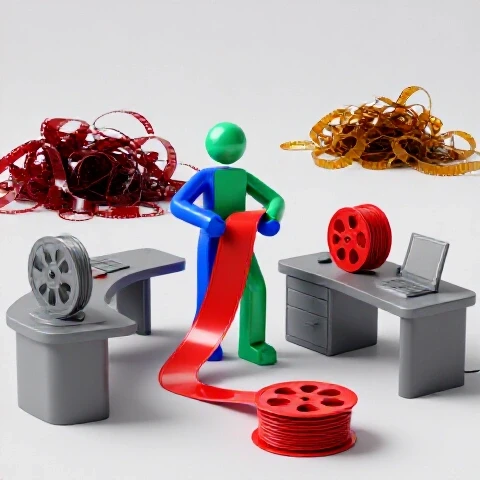
A production bottleneck is any point in your workflow where the process slows down or stops due to technical limitations. Identifying these points requires a self-audit of your entire pipeline, from the moment you hit record to the final upload.
I recommend keeping a simple log for one week. Record how long it takes to transfer footage, how many times your editing software crashes, and the exact duration of your final exports. When I performed this audit three years ago, I realized I was losing four hours a week just waiting for files to move from SD cards to my hard drive. By simply updating to a faster card reader and USB-C workflow, I eliminated that bottleneck for a fraction of the cost of a new camera.
- Transfer Speeds: Are you using UHS-I or UHS-II cards? The difference can be hundreds of megabytes per second.
- Playback Lag: Do you have to drop your preview resolution to 1/4 just to see your edits?
- Export Times: Does a ten-minute video take thirty minutes to render? Modern GPUs should handle this in near real-time.
- Setup Friction: Does it take you an hour to set up your lights and camera? If so, your physical space needs an optimization update.
Hardware Investment Rules for Cameras and Audio
Hardware investment rules are the criteria used to judge if a new camera, lens, or microphone will actually improve the production value or speed of a creator’s workflow. This involves looking beyond megapixels and focusing on features like autofocus reliability and internal recording formats.
When I look at cameras, I prioritize “usability” over “specs.” A camera that shoots 8K but overheats after twenty minutes is a liability, not an asset. For a tech-optimized video marketing strategy, you need a tool that stays out of your way. I look for reliable eye-tracking autofocus because it allows me to film solo without worrying about blurry shots. This single feature has saved me more time in re-shoots than any sensor upgrade ever could.
Audio is the other half of the equation. Many creators wait too long to update their microphones. High-quality audio is often more important than 4K video for viewer retention. If you are spending hours in post-production trying to remove hiss or room echo, your microphone setup is failing you. A dedicated XLR setup with a clean preamp can save you thirty minutes of “audio cleaning” on every single project.
Camera Gear ROI for Production Budgets
| Feature Upgrade | Time Saved Per Video | Quality Impact | ROI Timeline |
|---|---|---|---|
| Reliable Eye-AF | 45 Minutes (No re-shoots) | High (Always in focus) | 2 Months |
| 10-bit Internal Color | 20 Minutes (Better LUT response) | Very High (No banding) | 4 Months |
| Built-in ND Filters | 15 Minutes (Faster setup) | Medium (Consistent look) | 6 Months |
| XLR Audio Inputs | 30 Minutes (Less sync/cleanup) | High (Pro sound) | 3 Months |
Computing Power: When to Refresh Your Editing Station
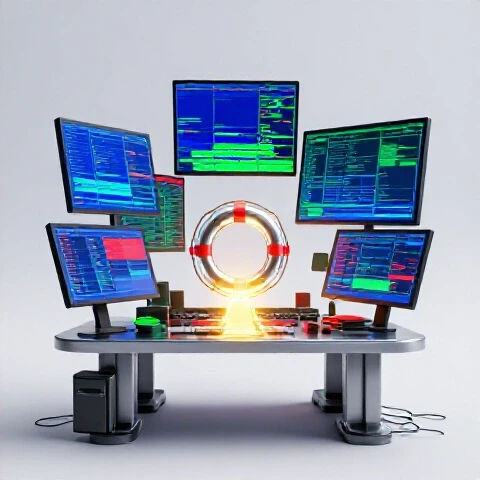
Refreshing an editing station involves updating the CPU, GPU, or RAM of a computer to meet the increasing demands of modern video codecs and AI-assisted editing tools. This is the most critical update for any editor looking to save time.
I follow the “20% Rule.” If a new computer can reduce my total editing and rendering time by at least 20%, it is a viable candidate for an update. Over 11 years, I have seen the shift from CPU-heavy editing to GPU-accelerated workflows. Today, your graphics card and dedicated media engines (like those found in Apple’s M-series chips or Nvidia’s RTX cards) do the heavy lifting for H.264 and HEVC footage.
If you are still using a machine from four or five years ago, you are likely missing out on hardware acceleration. This means your computer is working ten times harder than it needs to. When I moved to a dedicated workstation with an optimized NVMe drive for my cache files, my timeline scrub became butter-smooth. This allowed me to make creative decisions faster, reducing my “edit-to-done” time by nearly 40%.
Software Shifts: Choosing Between Premiere, Resolve, and AI Tools
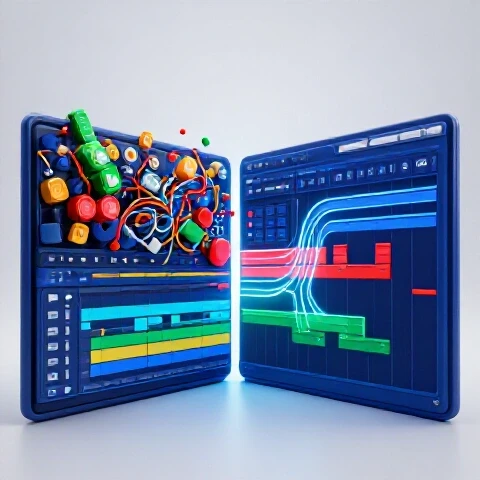
A software shift is the intentional move from one editing platform to another to gain specific advantages in speed, stability, or features like color grading and AI integration. This is often the most difficult update because it requires learning a new interface.
I have spent thousands of hours in Premiere Pro, DaVinci Resolve, and Final Cut Pro. Each has its place in an efficient video creation workflow. Premiere is excellent for its integration with After Effects, but DaVinci Resolve has become a powerhouse for creators who want an all-in-one solution with superior stability. The “best” software is the one that doesn’t crash on your specific hardware.
AI tools for video creators have changed the math on software updates. Tools like Descript allow you to edit video by editing text, which is a massive time-saver for talking-head content. Meanwhile, plugins like Topaz Video AI can save “ruined” footage by upscaling or de-noising it. I integrate these tools when they automate a task I find repetitive, such as generating subtitles or removing background noise.
Editing Software Benchmarks for Modern Workflows
| Task | Premiere Pro (Native) | DaVinci Resolve | CapCut (Desktop) | AI-Assisted (Descript) |
|---|---|---|---|---|
| 4K Export (10 min) | 6:30 | 5:15 | 7:45 | N/A (Cloud) |
| Proxy Generation | Excellent | Good | Automatic | N/A |
| Color Grading Speed | Medium | Fastest | Basic | Basic |
| Subtitle Generation | 5 Minutes | 4 Minutes | 2 Minutes | 1 Minute |
Building a Reliable Pipeline for Long-Term Growth
A reliable pipeline is a standardized series of steps and tools that ensure every video is produced with the same level of quality and efficiency. It minimizes decision fatigue by creating a “factory” for your content.
Building this pipeline means looking at your storage and backup solutions. Nothing kills a production schedule like a failed hard drive. I use a “3-2-1” backup strategy: three copies of my data, on two different media types, with one copy off-site. This sounds like overkill until you lose a week’s worth of work. For a creator hardware optimization plan, I recommend using a RAID system or a high-speed NAS for your active projects.
Maintenance is also part of the pipeline. I perform a “digital cleaning” every three months. This involves clearing cache files, updating drivers, and checking the health of my SSDs. Just like a car, your editing machine needs regular tuning to stay at peak performance. This proactive approach prevents the “emergency update” scenario where you are forced to buy gear because something broke in the middle of a deadline.
Advanced Efficiency Techniques and AI Integration
Advanced efficiency techniques involve using high-level automation, keyboard macros, and AI-driven workflows to shave seconds off every action in the editing process. This is where you move from being a fast editor to a production machine.
One of my favorite tech-optimized video marketing tips is the use of a dedicated editing console or a programmable macro pad. Assigning common tasks—like “ripple delete” or “match frame”—to a single button press saves a fraction of a second. Over a 2,000-cut edit, those seconds turn into minutes. I also use AI for “rough cuts.” Some tools can now scan your footage and automatically remove silences or “ums” and “ahs.”
Building on this, AI upscaling and frame interpolation have become essential for creators working with mixed-source footage. If you have old 1080p clips you want to use in a 4K project, AI can bridge that gap. Interestingly, the time saved by not having to manually fix these issues can be reinvested into content strategy and growth, which is the ultimate goal of any tech update.
AI Tool Time-Savings Tests
- Transcription and Subtitles: Moving from manual typing to AI-generated captions saves approximately 60 to 90 minutes per video.
- Audio Clean-up: Using AI noise removal (like Adobe Podcast or Waves Clarity) replaces hours of manual EQ and gating work with a single click.
- B-Roll Sourcing: AI search tools for stock footage can find relevant clips in seconds, compared to the 30 minutes of browsing typical for many editors.
- Automated Re-framing: For creators posting to TikTok and YouTube, AI that keeps the subject in the center of a vertical crop saves about 15 minutes of keyframing per clip.
Case Study: The 48-Hour Workflow Transformation
I recently consulted for a creator who was struggling with a 48-hour turnaround time for a single ten-minute video. They were using a 2018 laptop and shooting on a camera with no autofocus. Their rendering times were over an hour, and they spent six hours just color-correcting “muddy” footage.
We implemented a strategic update plan. We replaced the laptop with a modern M3-series Mac Studio and swapped the camera for a model with 10-bit color and reliable eye-AF. We also moved their editing from a generic external drive to a dedicated NVMe RAID.
- Before: 48 hours total production time. 90-minute render. Frequent crashes.
- After: 18 hours total production time. 8-minute render. Zero crashes.
- Result: They were able to double their upload frequency while spending less time in the editing chair. The equipment paid for itself in three months through increased ad revenue and sponsorships.
Personalized Production Optimization Roadmap
To build your own efficient pipeline, you need a roadmap that prioritizes the most impactful changes first. Don’t try to update everything at once; that leads to “gear anxiety” and a steep learning curve that actually slows you down.
- Month 1: The Audit. Track your time and identify your three biggest bottlenecks. Is it rendering? Is it audio? Is it setup time?
- Month 2: The Core Update. Address the biggest bottleneck. If your computer is slow, upgrade your RAM or GPU. If your audio is bad, get a better mic.
- Month 3: Workflow Automation. Integrate one AI tool or one new software technique (like proxy editing) to speed up your post-production.
- Month 4: Physical Optimization. Set up a “permanent” studio space where you can hit record in under five minutes.
- Month 5: Review and Scale. Look at your new benchmarks. Are you saving time? If yes, use that time to focus on your content strategy.
By following this path, you ensure that every dollar spent is a dollar that buys you more time. The goal of being a tech-focused creator is not to have the shiniest toys, but to have the most reliable system. When your tech works for you, you are free to do the real work: telling great stories and connecting with your audience.
FAQ: Navigating Gear and Workflow Decisions
How do I know if my computer is actually the bottleneck? Check your system’s “Activity Monitor” (Mac) or “Task Manager” (Windows) during an edit. If your CPU or GPU is constantly hitting 90-100% usage while you are just scrubbing the timeline, your hardware is limiting you. If you see “Disk Usage” at 100%, your hard drive is too slow.
Is it better to buy a new camera or a better lens? If your current camera has reliable autofocus and 10-bit color, buy a lens. A better lens improves the “look” of your video forever. However, if your camera is struggling with focus or has poor low-light performance that requires hours of “denoising” in post, a new body is the better investment for your YouTube production workflow.
When should I switch from Premiere Pro to DaVinci Resolve? Consider switching if you find yourself waiting for Premiere to “generate peaks,” if it crashes during long exports, or if you want better color grading tools without leaving your NLE. Resolve’s “Cut Page” is also specifically designed for fast-turnaround content, which can save hours for YouTube creators.
Do I really need a 4K monitor for editing? You don’t need 4K to edit, but you do need color accuracy. A high-quality 1440p monitor with 99% sRGB coverage is often better than a cheap 4K monitor. However, a 4K screen allows you to see your timeline and your 1080p preview at full resolution simultaneously, which improves editing precision.
How much RAM is enough for 4K video editing? For most creators, 32GB is the “sweet spot.” 16GB is the absolute minimum for 4K, but you will experience slowdowns if you have other apps like Chrome or Photoshop open. If you do heavy After Effects work or use a lot of AI plugins, 64GB is recommended.
Are AI tools like Descript worth the monthly subscription? If you do a lot of talking-head content or interviews, yes. The time saved by “editing via text” and the “Studio Sound” feature—which makes a cheap mic sound like a pro one—is usually worth the cost of a few cups of coffee. It is a classic example of an investment with a high ROI.
What is the most underrated gear update for speed? A fast SSD for your “Cache” or “Scratch” files. Most editors keep their footage on a slow drive and their cache on the internal drive. Moving your cache to a dedicated, high-speed NVMe drive can make a five-year-old computer feel brand new during the editing process.
Should I use proxies even if my computer is powerful? Yes. Even the most powerful workstations can struggle with certain highly compressed codecs like H.265. Proxies (lower-resolution versions of your footage) make the editing experience smoother, which reduces eye strain and mental fatigue, allowing you to edit for longer periods.
How often should I update my software? I wait at least two weeks after a major software release before updating. This allows the community to find the “show-stopping” bugs. For professional work, never update in the middle of a project. Stability is always more important than new features.
Does a better microphone really save time? Absolutely. A microphone with a low noise floor and a good “cardioid” pattern ignores background noise. This means you don’t have to spend time using noise-reduction plugins, which can often make your voice sound robotic if pushed too far. Good audio at the source is the ultimate time-saver.
(This article was written by one of our staff writers, Ryan Whitaker. Visit our Meet the Team page to learn more about the author and their expertise.)